

Snug by CrafterD
Drawer pockets that fit your tools
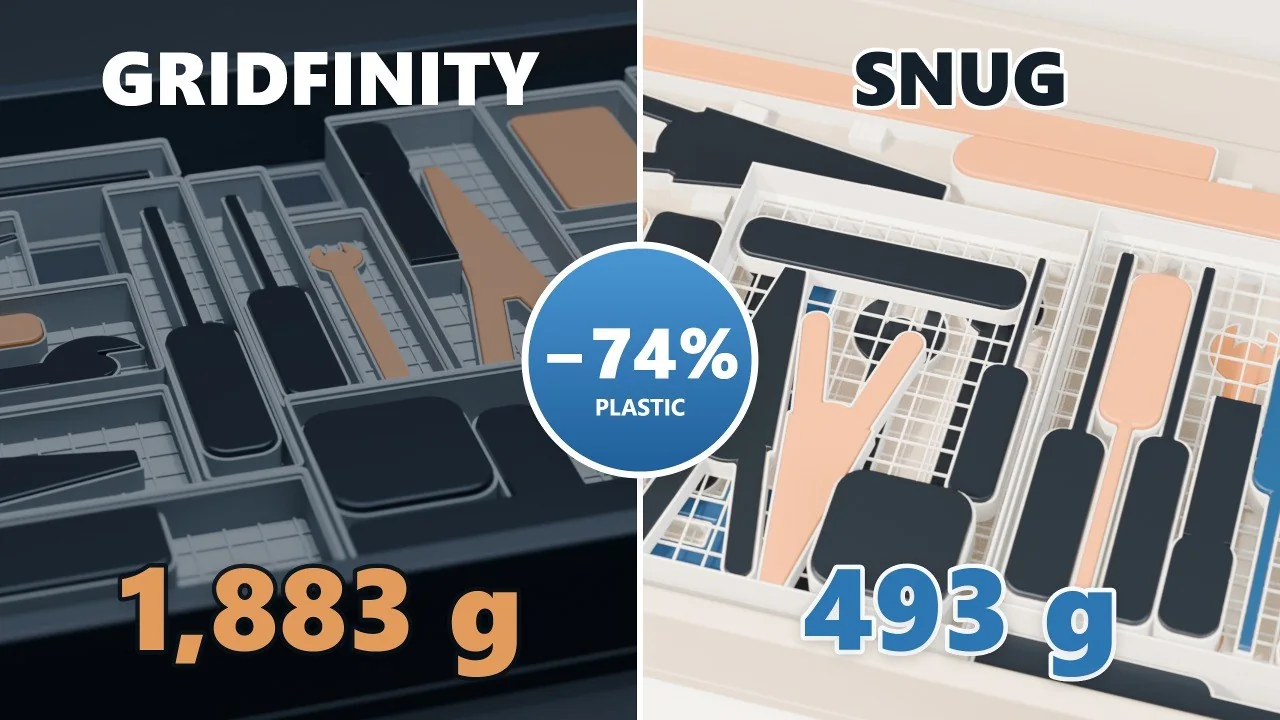
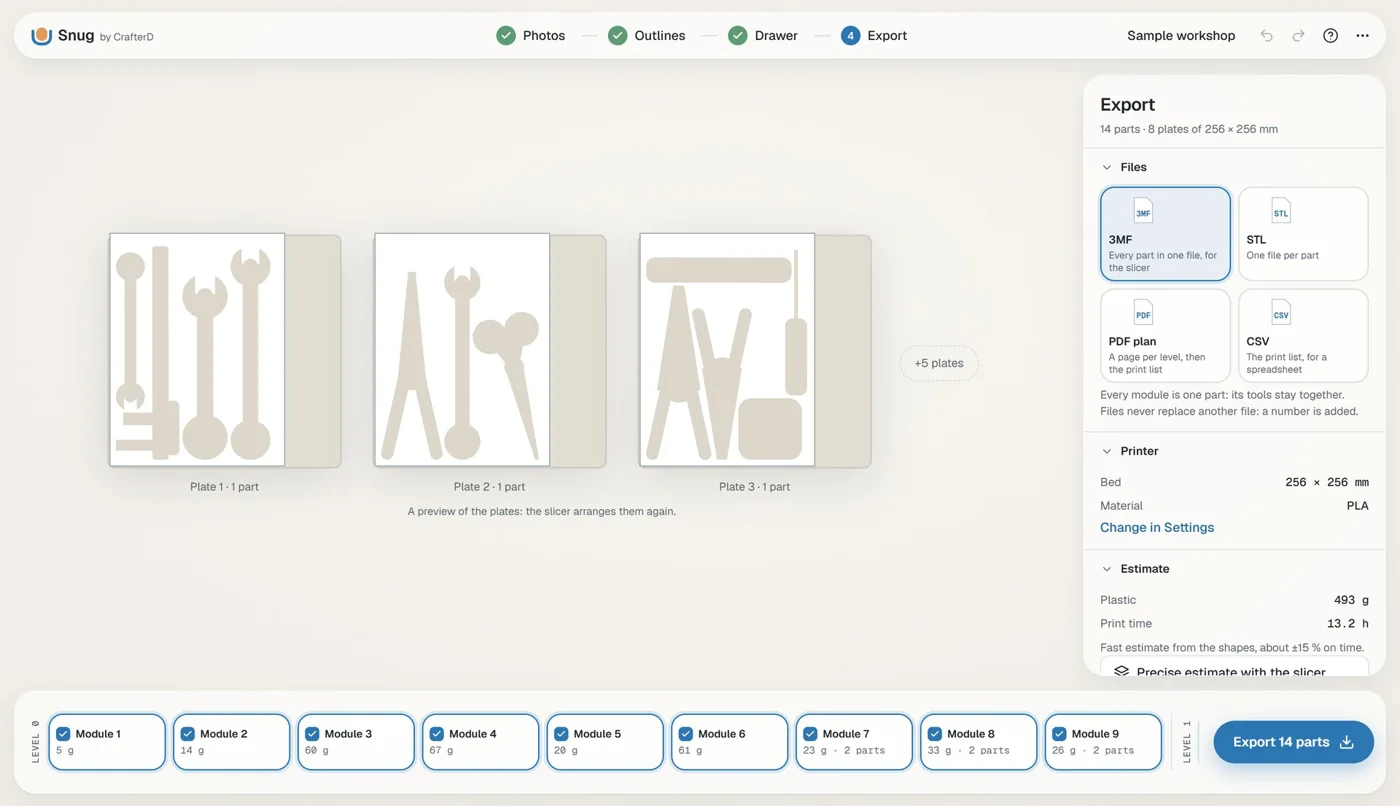
Photograph your tools on an A4 sheet and Snug turns the outlines into 3D-printable pockets that fill a drawer — with much less plastic than a Gridfinity grid.
How it works
From a photo to a printed drawer
What you need
Before you start
- Windows 10 or 11, 64-bit.
- Microsoft Edge WebView2 Runtime. It comes with Windows 11 and with up-to-date Windows 10; if the window stays empty, install the “Evergreen” runtime from Microsoft’s WebView2 page.
- About 4 GB of memory and 600 MB of disk space.
- A phone or camera, an A4 sheet of paper and your tools. A 3D printer for the result.
- Python is not needed: everything Snug runs on is inside the Snug folder.
How to start
Two steps, nothing to install
- Extract the whole zip into a folder of your choice (right-click › Extract All). Do not run it from inside the zip.
- Open the Snug folder and double-click Snug.exe. To remove Snug, delete the folder.
Private by design
Runs offline. Your photos stay on your computer.
No account, no statistics, no update check. Your photos, projects and exports stay where you save them.
Watch
See it in action
Changelog
Version 1.0.0
- First public release, shared as a Windows zip with the user guide (PDF), the licence and the third-party notices.
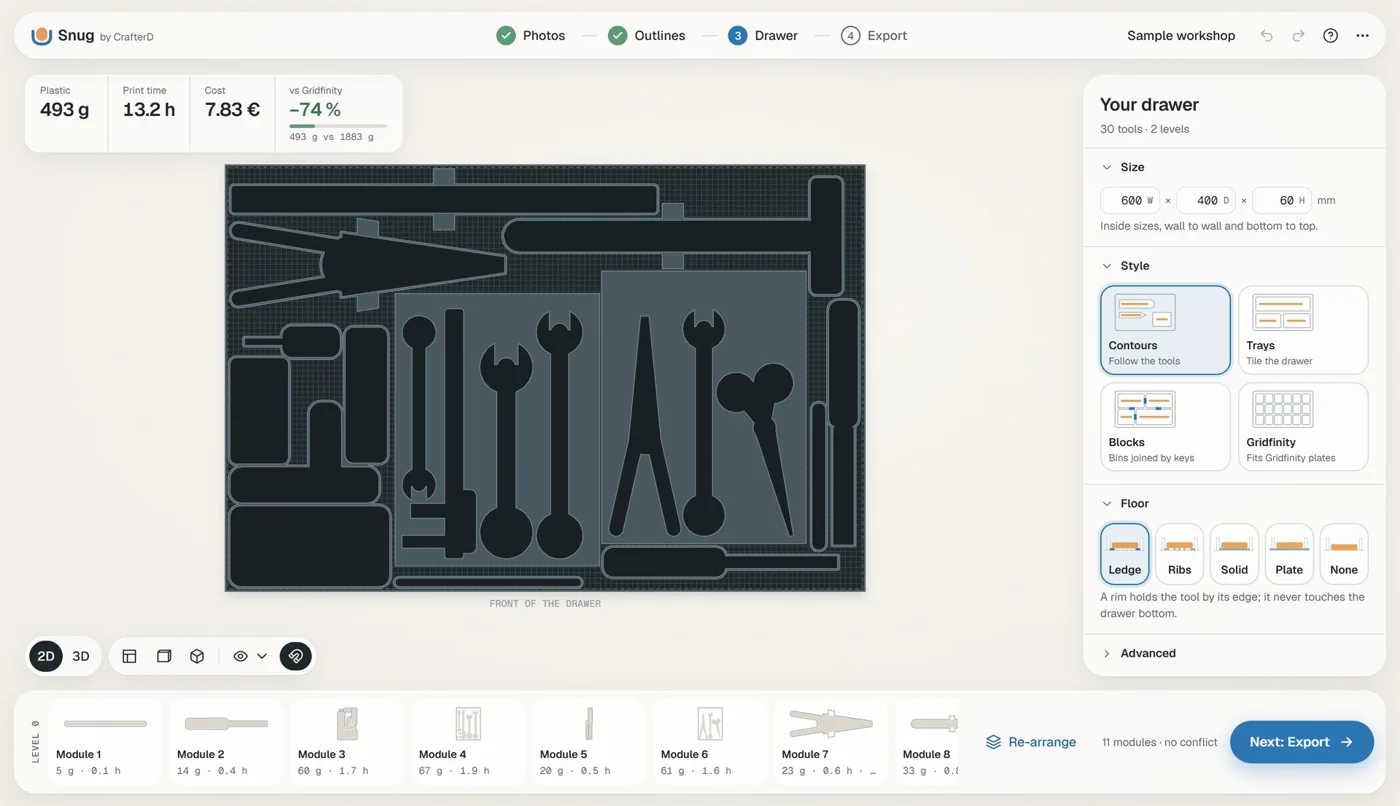
- Photos of your tools on an A4 sheet become outlines at real scale (sheet found, perspective fixed), with an outline editor: points, smoothing, finger notches, offsets.
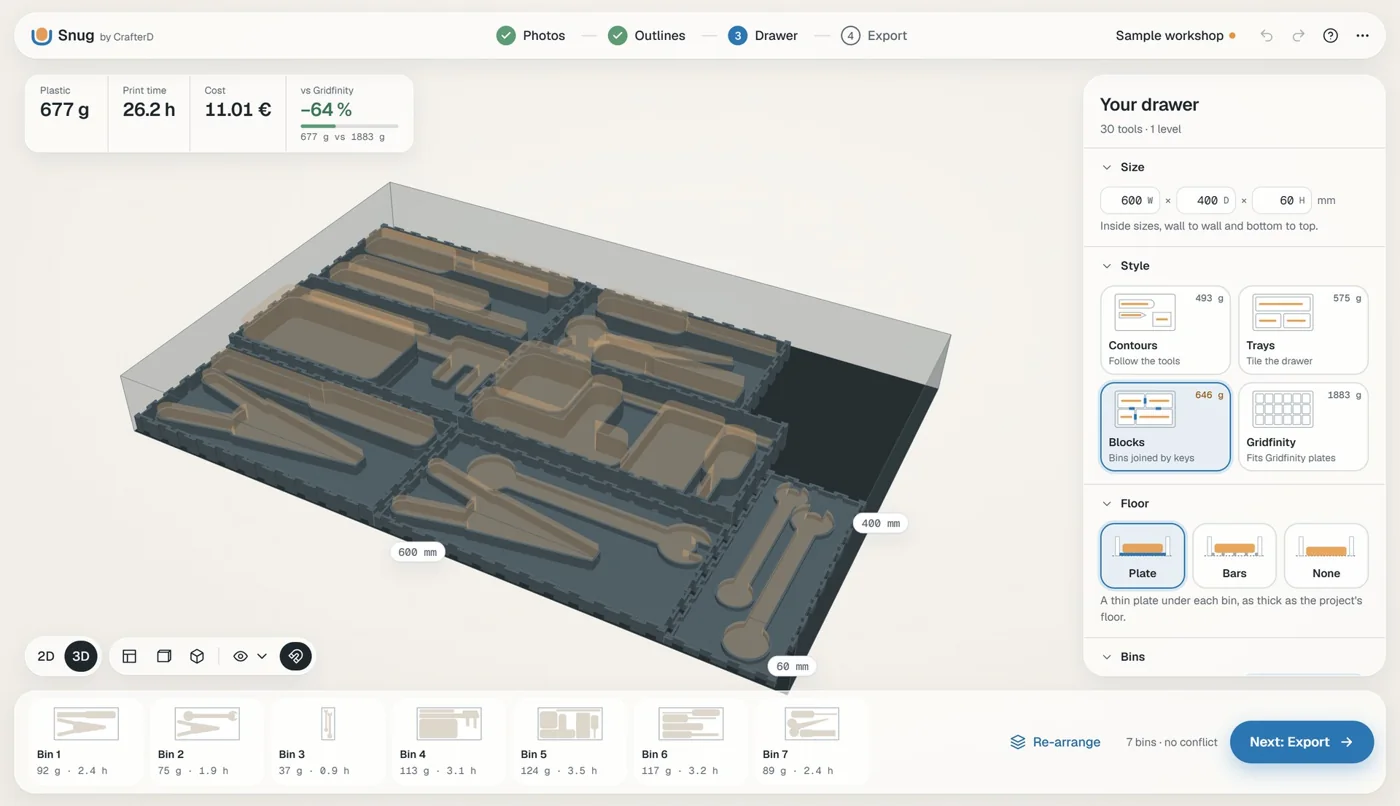
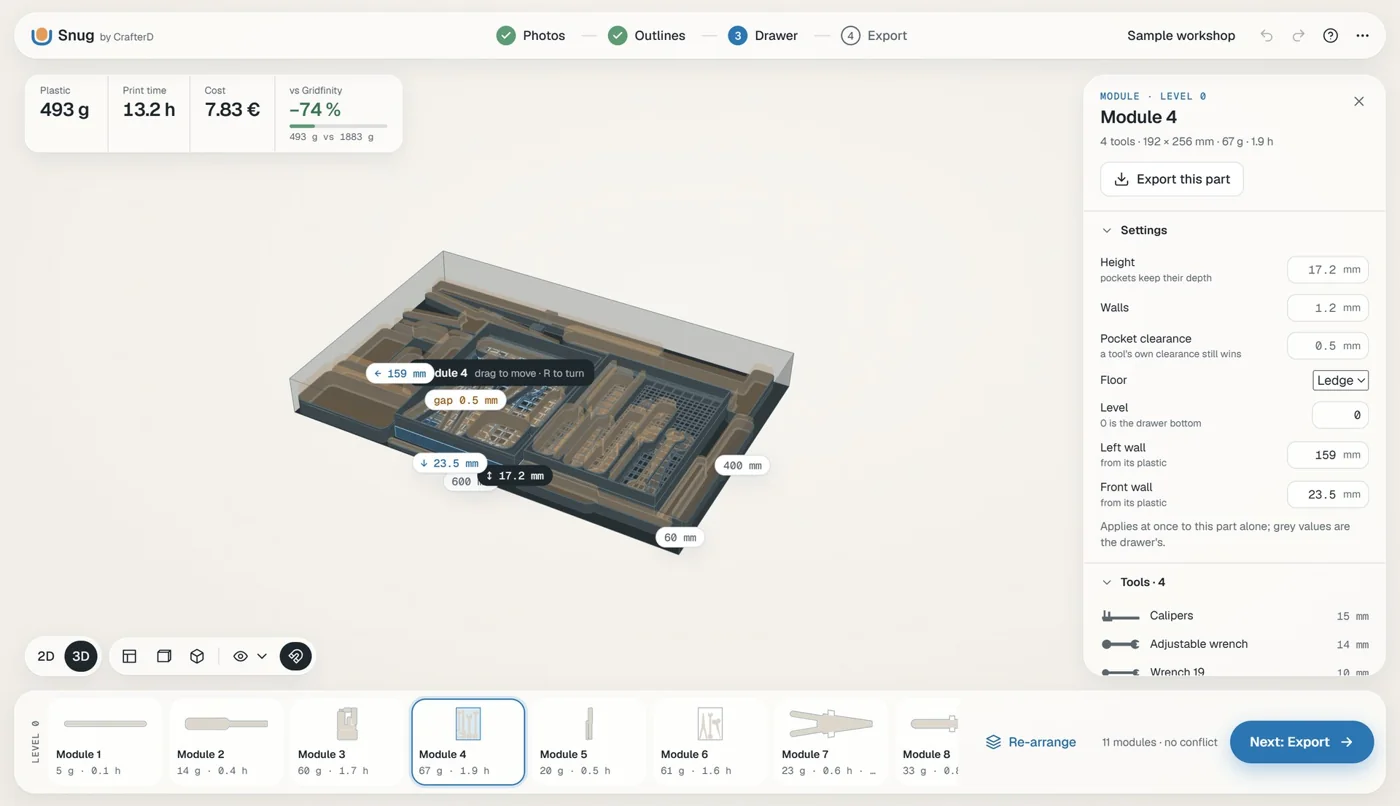
- Pockets that follow each tool, packed into the drawer by hand or automatically and split into printable parts; trays, puzzle cells and Snug Blocks joined by keys.
- 3D view of the drawer with print time and mass estimates; Gridfinity-compatible bins as an option.
- Export as STL or 3MF with plates for Bambu Studio and other slicers, plus a project file to open again.
- Interface in four steps (photos, outlines, drawer, export), built-in help, tooltips and a PDF guide.
- Runs offline. A “Support my work” button in the top bar opens Ko-fi in your browser, only when you click it.
Need help?
Something not working?
Tell me what happened: the button opens your email app with a short template (Windows version, steps, a screenshot). There is no form and nothing is stored on this site.
No email app opens? Write to contact@crafterd.com with your Windows version, the steps and a screenshot, or .
Ready to try Snug?
Download Snug 1.0.0 for WindowsWindows 10/11 · 64-bit · 75.7 MB zip
SHA-256: 5622…b769
If Snug saves you some filament, you can support it on Ko-fi. No pressure.
Support me on Ko-fi